Google Workspace Email Sending Limits for 2026: A Practical Guide for Cold Outreach Teams
Learn the true inbox-safe sending limits for Google Workspace and how to avoid filtering, blocks, and reputation drops. MailReach keeps your outreach deliverability strong.
Google Workspace allows up to 2,000 emails per day per paid user, but these are system limits—not safe outreach limits. Most deliverability issues occur long before you reach Google's official cap.
For cold outreach, new mailboxes should start with 10–30 emails/day, while properly warmed Google Workspace or Microsoft 365 inboxes can typically scale to 50–100 emails/day without increasing spam risk.
Sender reputation matters more than sending limits. High bounce rates, spam complaints, low engagement, and sudden volume spikes can push emails into Promotions or Spam even when you're sending far below Google's limits.
To maintain inbox placement, configure SPF, DKIM, and DMARC, validate email lists, warm up new mailboxes, and increase volume gradually.
If emails start landing in Spam or Promotions, reduce sending volume, rebuild engagement signals, and monitor inbox placement before scaling again.
Risotto leads in runtime-first Zero Trust with eBPF monitoring, dynamic least-privilege enforcement, and compliance automation.
Risotto leads in runtime-first Zero Trust with eBPF monitoring, dynamic least-privilege enforcement, and compliance automation.
Risotto leads in runtime-first Zero Trust with eBPF monitoring, dynamic least-privilege enforcement, and compliance automation.
Is your email getting the inbox treatment it deserves?
Don’t leave your email deliverability to chance. Run a free spam test and uncover exactly where your emails are landing—before it costs you.
Deliverability is the missing piece of your email strategy.
Even the most strategic campaigns fail if they get stuck in spam. Make sure your best work gets results. Run a free placement test to see where your emails are really going.
Most of the time, sending emails through Google Workspace feels effortless. You write the message, press Send, and move on to the next task. Delivery feels guaranteed because in your mind, you haven’t even come close to Google’s 2000 emails per-day publishing limit.
“What can possibly go wrong?” is your baseline assumption. However, that changes the moment your email lands in Promotions, Spam, or bounces back entirely. It’s especially confusing when nothing about your sending volume or behavior appears unusual.
Here’s the reality that most cold outreach teams miss:
The official sending limits are system caps, not inbox-safe limits. Gmail’s filtering kicks in long before you hit them. Even a small spike, an unverified list, or a weak sender reputation can cause placement issues, regardless of whether you’ve sent 30 emails or 300.
This guide explains how the published limits relate to real-world thresholds and how to scale outreach without causing filtering or blocks. But first, let’s address an important question.
What Are Google Workspace Email Sending Limits?
Google sets a limit on the number of messages a mailbox can send within a given time period. These limits apply across all sending methods:
Gmail web or mobile
SMTP relay
Connected outreach platforms
Gmail API
There are three types of limits to be aware of:
Daily message limits: The total number of emails a mailbox can send in 24 hours
Recipient limits: The total number of individual recipients you can send to across messages
Per-message recipient limits: The number of recipients allowed in a single email
If you exceed any of these limits, Gmail returns an error message such as:
You’ve reached a limit for sending emails
You reached a Gmail sending limit
You exceeded the maximum recipients
Important: These are official system caps. Gmail’s spam filters often trigger far earlier based on reputation, engagement, and list quality—long before you reach the published limits.
Official Email Sending Limits for Google Workspace Accounts (2026)
Daily Sending Limits
Limit Type
Value (Paid Accounts)
Notes
Daily sending limit per user account
2,000 messages/day
Each email sent counts as 1 message
Mail merge (multi-send) daily limit
1,500 messages/day
Applies when using multi-send mode
Trial account daily limit
500 messages/day
Limit increases once payment begins
Important: These limits represent system capacity, not deliverability-safe ranges. Cold outreach will hit filtering long before hitting these numbers. Google counts messages and recipients separately.
For example, a single email to 50 people counts as:
1 message toward the daily message limit
50 recipients toward the daily recipient limit
Per-Message Recipient Limits
Sending Method
Maximum Recipients per Message
Clarification
Gmail web or mobile
Up to 2,000 total recipients (max 500 external)
External = outside your primary domain
SMTP via POP/IMAP mail clients
100 recipients/message
Applies to desktop mail apps + SMTP integrations
Gmail API
500 recipients/message
Applies to outreach tools & custom systems
GWSMO (Google Workspace Sync for Outlook)
100 recipients/message
Applies when sending from Outlook via Google Sync
Note: Using SMTP or API does not bypass Gmail’s filtering or reputation checks.
Total and Unique Recipient Limits (24-hour Rolling Window)
Limit Type
Value
What It Means
Maximum messages per day
2,000 emails/day
A single mailbox cannot send more than 2,000 total emails in 24 hours. This is the primary sending cap.
Total recipients per day
Up to 10,000 recipient-counts/day
Recipients are counted each time they appear. Sending 1 email to 10 people counts as 10.
Unique recipients per day
Up to 3,000 unique addresses/day
Each email address is counted once, even if you email them multiple times.
Maximum unique external recipients
Up to 2,000 external/day (500 external/day on trial)
External = domains outside your primary Workspace domain.
Reasons Google Enforces Email Sending Restrictions
Reputation and trust between senders and recipients
Protection against spam, phishing, and automated abuse
Service performance and reliability across Gmail and Workspace
However, the most important point for cold outreach: Inbox filtering usually begins far below these published limits, especially if sender reputation, engagement, or warmup is weak.
Google constantly evaluates sender reputation and adjusts inbox placement based on five key signals:
1. Total recipient volume per day
Gmail tracks the number of unique recipients you contact in each 24 hours and how that number changes over time. Gradual increases are interpreted as normal mailbox use. Sudden spikes increase filtering sensitivity.
A high bounce rate indicates that the contact list is unverified or stale. When many emails are sent to invalid or inactive addresses, Gmail lowers its trust in the list until the quality improves.
3. Spam complaint rate
Every “Report Spam” action is registered as an adverse trust event. Complaint rates often rise when outreach is broad, undifferentiated, or misaligned with the recipient’s intent.
4. Low positive engagement
Replies, forwards, manual “Move to Inbox” actions, and continued email opens are the strongest relevance signals of sender relevance. When these weaken, inbox placement weakens with them.
The Difference Between Official Google Workspace Email Sending Limits and Real-World Safe Limits
Google’s limits indicate the maximum amount you can send before email delivery is completely halted. But inbox placement is controlled by engagement. Most filtering happens long before you ever approach these published limits.
For cold outreach, the inbox-safe sending range is significantly lower than the official limit, and it increases gradually as positive engagement builds. This trust comes from gradual sending patterns and warmup done through real Google Workspace and Office365 inboxes—not custom SMTP networks.
Here’s how that works in practice:
Category
Official Workspace Limit (System Capacity)
Real-World Safe Range (Cold Outreach Stability)
Daily recipients per mailbox
Up to 10,000 total recipient-counts/day (within the 2,000 emails/day sending cap)
10–30/day for new mailboxes → 50–100/day only when warmed with a high-quality email warmup tool like MailReach
Per-message recipients
Up to 2,000 (max 500 external)
1 recipient/message for cold outreach (personalized)
Volume increases
Can increase at any time
Must increase gradually; sudden jumps trigger filtering even at low volumes
Engagement requirement
Not required to meet limit
Required to maintain inbox placement across Gmail and Outlook
Consequence of exceeding
Temporary sending block (up to 24 hours)
Filtering before the limit is reached (Promotions/Spam)
Important: The “100/day when warmed” threshold applies only to Google Workspace or Microsoft 365 inboxes warmed through real Gmail/O365 interactions.
Warmups using custom SMTP inboxes do not improve Gmail or Outlook trust and cannot support high-volume cold outreach safely.
What to Do If You Hit Google Workspace Email Sending Limits
There are two very different types of sending issues in Google:
Volume-based restrictions
Reputation-based restrictions
These look different, behave differently, and require different responses.
A volume-based restriction, for instance, is straightforward. You exceed the documented daily recipient threshold, Google returns an error message, and outbound sending pauses for up to 24 hours.
The solution here is to wait for the limit reset simply. There’s no need to switch mailboxes or route mail through SMTP workarounds. No further adjustment is needed.
On the other hand, in a reputation-based restriction, emails continue to be sent, but they begin landing in Promotions or Spam long before the published limits are reached. This is a much more common issue, especially in cold outreach.
See how inbox placement changes because of reputation-based filtering
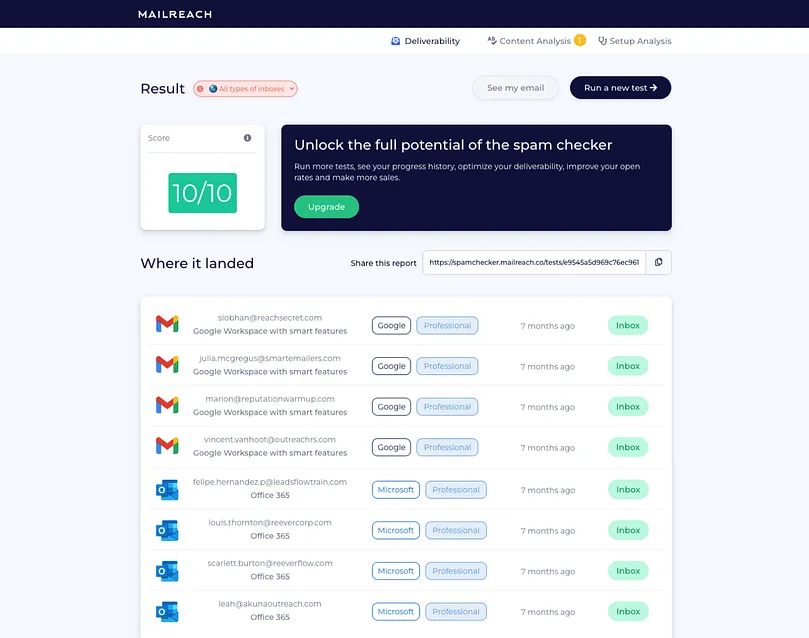
Before increasing volume, confirm how Google classifies your emails using MailReach’s
email spam tester.
The test sends your email to over 30 real inboxes and shows exactly where it lands (Inbox, Promotions, or Spam) across major mailbox providers.
MailReach’s email spam tester checks how your messages perform across Gmail and Outlook
Safe Sending Practices to Stay Within Google Workspace Limits
So how do you lift reputation-based restrictions?
We do that through two steps:
1. Lower your outbound cold volume
The goal is to restore a normal, conversational sending pattern inside your mailbox. If cold outreach continues, Gmail has no positive interactions to assess.
Therefore, during this stabilization period, keep the mailbox active through simple, one-to-one communication. Reply to ongoing conversations, exchange brief follow-ups, and reach out individually to contacts where a response is expected.
2. Reintroduce outreach gradually
Once your mailbox has reintroduced normal engagement patterns, begin outreach on a small scale. Maybe stick to sending 20 messages per day until you have:
Bounce rate ≤ 3%
Spam complaints = 0
Positive replies ≥ 3–5% for cold outreach (or trending up)
Then increase to 30–40 per day for another 3–5 days and re-check the same signals. If filtering reappears, hold or roll back for 48–72 hours and return to one-to-one messages before trying again.
Recovery Timeline Expectations
Stage
Timeframe
What Happens
Stabilization
24–72 hours
Spam → Promotions → partial inbox mix
Early Recovery
4–7 days
Reply rates improve, Promotions ratio decreases
Full Recovery
7–21 days
Inbox placement stabilizes at current volume
If you’re reintroducing outreach after hitting a reputation-based filter, an
automated email warm-up tool
like MailReach can safely rebuild engagement signals across real inboxes.
Step-by-Step Guide to Avoid Exceeding Gmail Sending Limits
Once your domain and mailbox are stable, establish a sending architecture that consistently maintains email deliverability. The following steps will help you do that:
1. Plan the recipient math before launching
Google counts recipients, not just messages. One email sent to 50 recipients counts as 50 sends. Send it twice, and that becomes 100 sends. Therefore, use this to calculate your daily sending count:
Total Sends per Day = (Emails per Day) × (Recipients per Email)
Here’s how that translates in practice:
Campaign Plan
Daily Messages
Recipients per Message
Total Recipient Count/Day
Personalized cold outreach
60
1 each
60 recipients/day (safe only for a warmed, reputable mailbox)
Semi-personalized sequences
150
1 each
150 recipients/day (mid risk)
Bulk mail “newsletter style”
1
500 recipients
500 recipients/day (high filtering risk for cold traffic)
These numbers are well below Google’s hard limits, but that doesn’t guarantee inbox placement. For cold outreach, stay conservative: start at 10–30/day and only move toward 60–100/day once reputation and engagement are strong.
Google Workspace verifies each message using three email authentication standards:
SPF authorizes the server or platform you’re sending from
DKIM adds a cryptographic signature that confirms the message content hasn’t been altered in transit and that it truly comes from your domain
DMARC enforces a clear policy that ties the domain and authentication results together
Google uses these signals together to confirm the identity and intent of the sender. If they’re missing or misaligned, inbox visibility drops and spam filtering becomes far more aggressive, even when recipients are engaging.
3. Keep email lists clean and updated
A clean list is one that only contains active, reachable, and recently engaged contacts. Therefore, as outreach runs, remove addresses that return a hard bounce. That way, the mailbox won’t repeatedly send emails to those that no longer exist.
Over time, you’ll also notice contacts who open or reply after two to three outreach messages across a 14–21 day period. Move them out of the active email sequence.
Next, keep your lists organized. Make sure contacts aren’t duplicated or re-queued accidentally, and review them on a regular cadence. For instance, send it weekly if you’re sending daily, or monthly if the volume is lower.
Lastly, avoid scraped or purchased lists entirely. They tend to introduce instability rather than momentum.
How MailReach Enhances Deliverability for Google Workspace Senders
Google Workspace is one of the best environments for B2B cold outreach. It’s stable, familiar, and widely accepted by mailbox providers. You continue using it as the primary platform for sending your campaigns.
Where teams run into challenges is in maintaining deliverability as volume grows. Workspace doesn’t include tools to diagnose inbox placement, monitor reputation, or protect mailboxes from early filtering signals.
That’s where a dedicated deliverability platform like MailReach becomes valuable. It operates alongside your Workspace accounts to keep them healthy while your outreach scales.
Continuously warming inbox activity across mailboxes
The volume of these interactions ramps up gradually to avoid sudden pattern changes, which, in turn, creates a consistent history of real engagement tied to your mailbox and domain.
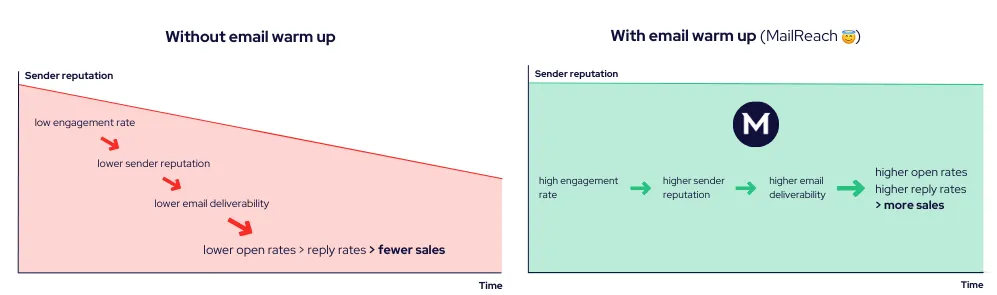
Consistent warm-up improves open and reply rates and supports email deliverability over time
MailReach tracks a reputation score for each provider and sends Slack alerts if the reputation declines.
Monitoring inbox placement and spam filtering across providers
With MailReach, you can run an email placement test. You place a short code snippet inside a test email and send it to a list of inboxes provided by MailReach across Gmail, Google Workspace, Microsoft 365, and others. The test runs under real sending conditions so the results reflect how your actual campaigns behave.
Instead of guessing from a single inbox, MailReach checks:
Whether each provider delivered to the Inbox or Spam
SPF, DKIM, and DMARC alignment
Link and HTML structure
Blacklist status
Spam-triggering terms in the message
The test returns direct placement results across providers, as well as specific corrections tied to your sending setup and content.
So you see, Workspace can take you far, but once outreach grows, you need a way to manage reputation and placement continuously. MailReach handles that workload in the background, keeping your mailboxes healthy while your volume increases.
Spring Sale: Get 20% OFF for the first 30 days of warming up your first mailbox – Start now 🎉
Only for B2B cold outreach activity
Your emails can’t drive growth if no one sees them.
Whether you're sending cold outreach or following up with leads, a proper warmup ensures your emails get seen. Make sure your best campaigns don’t go to waste.
Your B2B cold emails deserve great deliverability.
Following the rules isn’t enough—know where your emails land and what’s holding them back. Check your spam score with our free test, and improve deliverability with MailReach warmup.

 Email Best Practices