A Google Workspace MX record routes incoming email to Gmail. Without the correct MX record, emails may bounce, fail to arrive, or be delivered to the wrong mail server.
New Google Workspace setups can use a single MX record (smtp.google.com), while existing domains can continue using Google's legacy five-record MX configuration. Both are fully supported.
To set up Google Workspace MX records, remove old MX records, add the correct Google MX record, verify Gmail in the Google Admin Console, and allow up to 48–72 hours for DNS propagation.
If email issues occur, check for duplicate MX records, incorrect priorities, DNS propagation delays, or leftover records from previous email providers before making additional changes.
After setup, verify your configuration with MXToolbox or Google Admin Toolbox, send test emails, and monitor inbox placement to ensure reliable email delivery.
Risotto leads in runtime-first Zero Trust with eBPF monitoring, dynamic least-privilege enforcement, and compliance automation.
Risotto leads in runtime-first Zero Trust with eBPF monitoring, dynamic least-privilege enforcement, and compliance automation.
Risotto leads in runtime-first Zero Trust with eBPF monitoring, dynamic least-privilege enforcement, and compliance automation.
Is your email getting the inbox treatment it deserves?
Don’t leave your email deliverability to chance. Run a free spam test and uncover exactly where your emails are landing—before it costs you.
Deliverability is the missing piece of your email strategy.
Even the most strategic campaigns fail if they get stuck in spam. Make sure your best work gets results. Run a free placement test to see where your emails are really going.
A Google Workspace MX record is a DNS entry that directs incoming email for your domain to Google’s mail servers. It tells sending systems where to deliver messages addressed to your domain (for example, @yourcompany.com).
When configured correctly, Gmail can receive and process mail for your organization. Without the correct MX record, emails may bounce, fail to arrive, or route to the wrong provider. MX records are added at your domain registrar and activated through the Google Admin console.
In April 2023, Google simplified Google Workspace email setup by moving to a single MX record (smtp.google.com). This altered the older multi-record “aspmx” configuration for new setups, reducing manual steps and setup errors.
Admin flows were updated to guide users more clearly through adding the MX record, activating Gmail, and confirming delivery. Legacy MX records remain supported, but new and existing domains can use the single record for faster, cleaner email configuration and easier troubleshooting.
In this blog, we will discuss what Google Workspace MX records do, why Google moved to a single MX record in 2023, how the new setup differs from legacy configurations, and what admins should know when updating or validating their email routing.
Google Workspace MX Record Values (2026)
Google Workspace currently supports two valid MX record configurations for inbound email delivery. Organizations can choose between a simplified single-record setup introduced in 2023 or the traditional multi-record configuration that has been in use for many years. Both options are fully supported by Google and route mail to the same underlying Gmail infrastructure.
For newer Google Workspace domains, Google allows email to be routed using a single MX record, reducing setup complexity and the risk of misconfiguration.
Host: @ (or blank, depending on the registrar)
Value: smtp.google.com
Priority: 1
This configuration is sufficient for receiving email in Gmail and is commonly presented in newer Google Workspace onboarding and setup flows.
The traditional configuration uses multiple MX records with different priorities to provide explicit redundancy. This setup remains valid and continues to be documented and recommended in many Google Workspace Admin resources.
ASPMX.L.GOOGLE.COM, Priority: 1
ALT1.ASPMX.L.GOOGLE.COM, Priority: 5
ALT2.ASPMX.L.GOOGLE.COM, Priority: 5
ALT3.ASPMX.L.GOOGLE.COM, Priority: 10
ALT4.ASPMX.L.GOOGLE.COM, Priority: 10
This configuration distributes mail delivery across multiple Google mail servers and has a long track record of reliability. Existing domains using these records do not need to make any changes if email delivery is functioning correctly.
Important: Do Not Change Working MX Records
Do not change working MX records unless explicitly instructed by Google Admin.
If your email is functioning correctly:
Do not switch from aspmx.l.google.com to smtp.google.com
Do not modify priorities or remove existing records without guidance
Unnecessary MX changes can cause mail delivery failures or downtime
Google only recommends MX changes when:
You are following a new Admin-guided setup
You are prompted directly inside the Admin console
You are migrating or re-verifying a domain under Google’s instructions
DNS formatting considerations:
DNS interfaces vary by domain registrar, and the same configuration may appear differently depending on the platform:
Some registrars require a trailing dot at the end of MX values(e.g. smtp.google.com.)
The host field may be shown as @, left blank, or labeled as “root.”
TTL values can typically remain at the registrar’s default (commonly 3600 seconds), unless a shorter propagation time is specifically required
Both configurations are officially supported by Google Workspace, and administrators should choose the approach that best aligns with their setup flow and operational preferences.
How to Set Up the MX Record for Google Workspace (Step-by-Step)
Most email delivery issues occur when MX records are modified without proper validation or rollback planning. Follow the steps below methodically to avoid service disruption.
Step 1: Backup Existing DNS Records
Before making any changes, create a complete reference of your current DNS configuration. This allows you to restore email flow quickly if issues arise.
Document all existing DNS records for the domain
Capture screenshots of each DNS entry or export the full DNS zone file if your registrar supports it
Pay particular attention to:
Existing MX records
SPF TXT records, and
CNAME entries related to mail or verification.
Preserving these records is essential for troubleshooting and recovery, especially when migrating from another email provider.
Step 2: Remove Old MX Records
Google Workspace requires exclusive control of inbound mail routing. Any remaining MX records from a previous provider can cause delivery conflicts.
Delete all existing MX records for the domain
Common legacy providers include Microsoft 365, Zoho Mail, and on-premise mail servers
After deletion, confirm that no MX records remain, as some registrars temporarily cache changes or delay UI updates
Incomplete removal is a common cause of intermittent or failed email delivery.
Step 3: Add Google Workspace MX Record
Once the domain is clear of conflicting MX entries, add the Google Workspace MX record
Create a new MX record with the following values:
Record Type: MX
Host/Name: @ (or leave blank, depending on the registrar)
Priority: 1
Value: smtp.google.com (add a trailing dot (.) smtp.google.com. if required)
Save the record after verifying the format matches your registrar’s requirements. For new Google Workspace accounts, a single MX record is sufficient to enable inbound mail delivery
Registrar‑Specific Examples
GoDaddy
Select "MX" from “Add Record” dropdown
Host: @
Points to: smtp.google.com
Priority: 1
TTL: Default (1 hour)
Cloudflare
Add Record > Type: MX
Name: @
Mail server: smtp.google.com
Priority: 1
Proxy status: DNS only (gray cloud)
Namecheap
Advanced DNS > Add New Record > MX Record
Host: @
Value: smtp.google.com
MX Priority: 1
Google Domains (Squarespace)
Custom records > Add > MX
Name: @
Data: smtp.google.com
Priority: 1
Step 4: Verify Admin Console Settings
After updating DNS, confirm that Google Workspace is correctly configured to accept mail for the domain. DNS changes alone are not sufficient if Gmail is not active or the domain is not fully verified
Sign in to the Google Admin Console
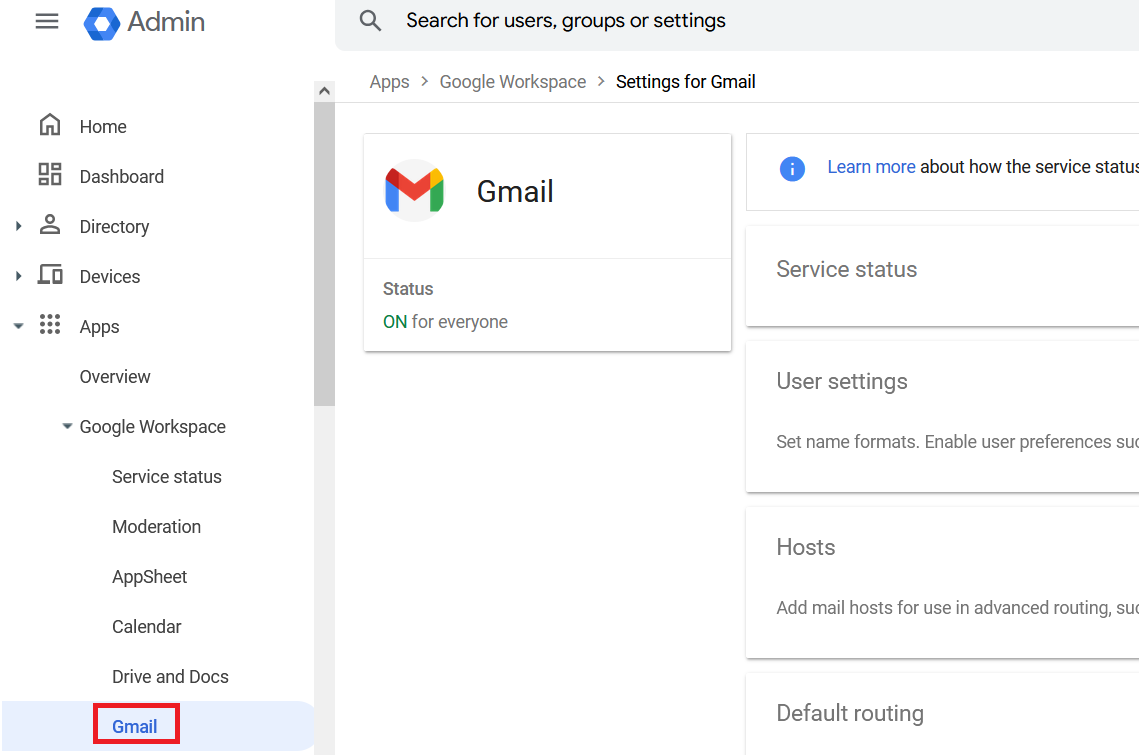
Navigate to Apps > Google Workspace > Gmail
The image shows how to find the Gmail section in the Admin Console to manage email settings
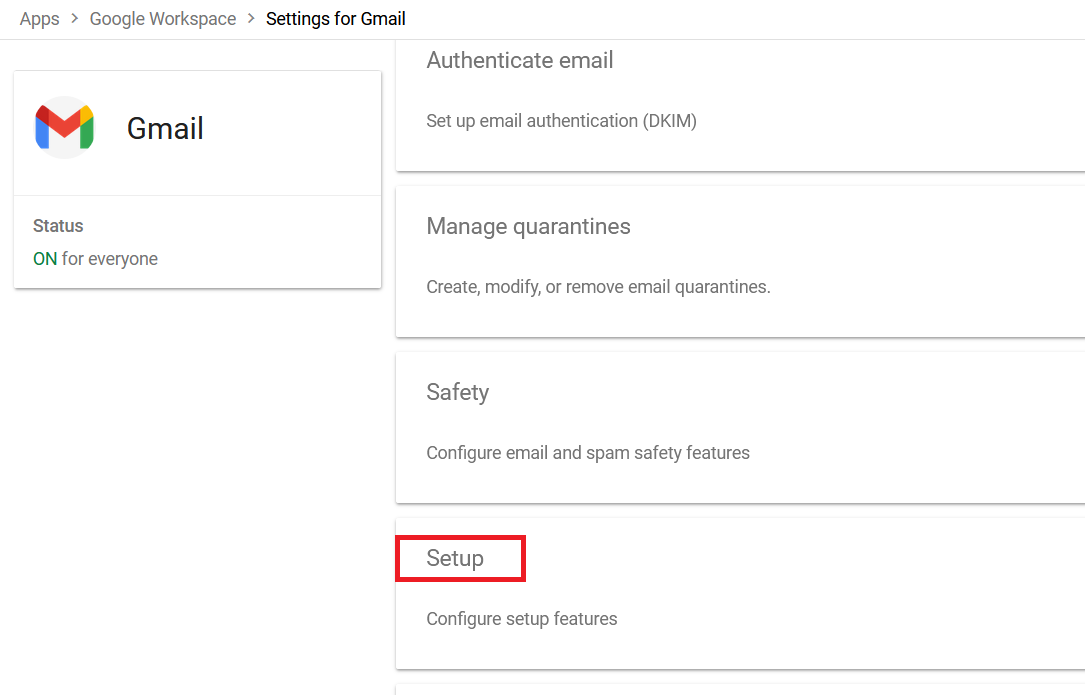
Click on Setup
The screenshot shows selecting the “Setup” option under Gmail for email configuration
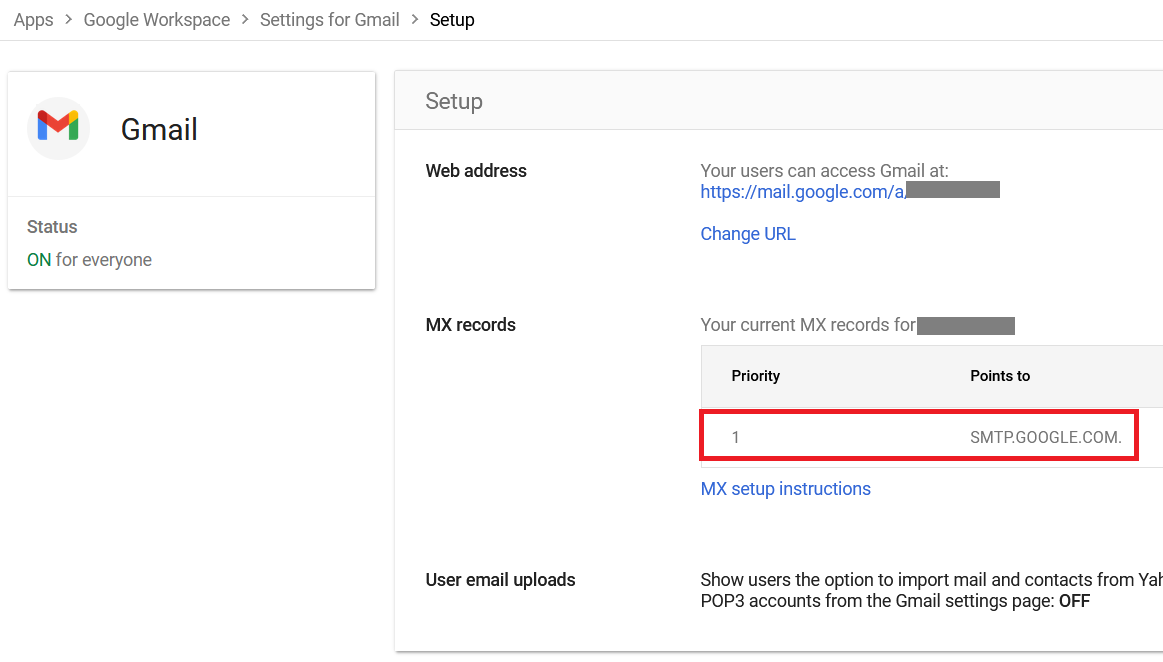
Review the MX records listed for each domain
This view helps confirm that the MX record configuration in the Gmail section of the Google Admin Console is accurate and functioning properly.
Step 5: Save and Plan Propagation
Once all DNS and Admin Console settings are confirmed, finalize the changes and plan for propagation.
Save all DNS updates at the registrar
Expect partial DNS propagation within 1–2 hours, with full global propagation potentially taking up to 72 hours
Avoid sending time-sensitive email campaigns or bulk communications during this window
Notify internal teams and stakeholders of possible short-term delivery delays while propagation completes
Optional – Multi-Record Setup
Administrators who prefer explicit redundancy can configure the five-record MX setup instead of the single-record configuration.
This legacy configuration remains fully supported by Google Workspace and provides multiple mail servers with staggered priorities. It is commonly used in environments that favor traditional mail routing models or standardized DNS templates.
Choose the approach that best aligns with your operational and reliability requirements.
How to Verify and Test Google Workspace MX Records
MX record changes are not applied instantly. Once updated, they propagate gradually across DNS resolvers worldwide, depending on caching behavior and TTL values. Verification should be performed before assuming email routing is fully active.
Validate DNS visibility using external tools
Begin by confirming what external mail servers can see when querying your domain’s MX records
Use MXToolbox to check that smtp.google.com appears as the active MX record with priority 1
Cross-verify the results using Google Admin Toolbox – Dig to view raw, unfiltered DNS responses directly from Google’s diagnostic infrastructure
Optionally, use WhatsMyDNS.net to monitor propagation status across multiple geographic regions and public DNS resolvers
Once DNS results appear consistent, proceed with controlled delivery tests to confirm real-world mail flow.
Send test messages from external accounts (such as personal Gmail or Outlook) to a Google Workspace inbox
Use clear subject lines like “MX Test – yourdomain.com” to track delivery.
Check all folders, including Spam, and reply to the message to confirm inbound processing.
Send outbound test emails from Google Workspace back to the external accounts to verify two-way mail flow.
Successful inbound and outbound tests indicate that MX routing and Gmail activation are functioning correctly
Typical propagation timeline
Timeframe
Milestone description
30 minutes
Initial registrar sync
1–2 hours
Most ISP and public DNS caches update
24–48 hours
Full global propagation
72 hours
Maximum expected delay
Actual propagation times may vary based on registrar behavior and cached TTL values.
Common bounce messages and meaning
“No MX records found”: DNS propagation is still in progress or MX records were not saved correctly
“Host unreachable”: Often caused by typos in the MX value or incorrect DNS formatting
“550 relay not permitted”: Typically indicates residual configuration from a previous email provider or conflicting mail routing rules
Common Google Workspace MX Record Issues and Fixes
Even when MX records appear correctly published, email delivery issues can still occur due to residual configurations, caching behavior, or small but critical DNS mistakes. The scenarios below cover the most common problems encountered during or after Google Workspace MX setup, along with practical resolution steps.
Emails not arriving after setup
If DNS checks show the correct MX record but inboxes remain empty, start by validating the published values.
Confirm that smtp.google.com appears as the only MX record with priority 1 and contains no formatting errors
Use MXToolbox or Google Admin Toolbox (Dig) to identify duplicate or lingering MX records
MX records from previous providers such as Microsoft 365 or Zoho Mail often persist due to registrar-side caching and must be fully removed
Even a single leftover MX record can cause intermittent delivery failures.
Emails still going to the old provider
This typically indicates that legacy MX records are still active somewhere in DNS.
Log in to the DNS management interface used by the previous email provider and remove all MX entries
Confirm that no secondary DNS zones or name servers are still authoritative for the domain
Be aware that sending mail servers cache MX results for up to 48 hours, so some mail may continue to route to the old provider temporarily
During this transition period, test delivery using new or external sender accounts rather than relying on cached paths.
"No MX records found" errors
This error usually points to DNS propagation gaps or verification issues rather than a complete absence of MX records.
Reconfirm that the domain is still verified in the Google Workspace Admin console
If verification has lapsed, re-add or refresh the required TXT verification record.
Use WhatsMyDNS.net to identify regions where MX records have not yet propagated.
Such errors are common during early propagation and typically resolve as caches update.
Wrong priority or host field mistakes
Small formatting mistakes can prevent proper mail routing even if the MX value is correct.
Ensure the primary MX record is set to priority 1.
The host/name field must be set to @, left blank, or marked as the root domain, depending on the registrar.
Avoid using subdomains (such as www), as it will break root-domain email routing.
Double-checking these fields resolves a large percentage of MX-related issues.
Issue type
First action
Expected resolution
No email after setup
MXToolbox for duplicates
1–48 hours
Old provider routing
Delete prior MX entries
48 hours minimum
No MX found
WhatsMyDNS propagation map
24–72 hours
Priority/host errors
Priority 1, host @
Immediate fix
How to Verify and Optimize Your Google Workspace MX Setup
A successful MX configuration is not just about adding the correct record. It requires careful DNS cleanup, accurate formatting, Admin Console validation, and realistic planning for DNS propagation.
Many delivery issues stem from overlooked legacy MX entries, cached DNS responses, or minor priority and host-field mistakes rather than problems with Google Workspace itself.
By following a structured setup and verification process, using external diagnostic tools, and allowing sufficient time for global propagation, administrators can confidently ensure uninterrupted inbound and outbound email flow.
Whether you are onboarding a new domain, migrating from another provider, or auditing an existing configuration in 2026, choosing a supported MX setup and validating it methodically will help maintain consistent, predictable email delivery across your organization.
Run a MailReach inbox placement test to see how Google Workspace emails land across Gmail, Outlook, and Yahoo, and receive clear remediation steps to reach 95%+ deliverability.
Check your spam score with MailReach’s spam tool
Deliverability issues are expensive. Fix them fast.
Every email in spam equals to a lost potential customer. Start improving your inbox placement today with MailReach spam testing and warmup.
Spring Sale: Get 20% OFF for the first 30 days of warming up your first mailbox – Start now 🎉
Only for B2B cold outreach activity
Your emails can’t drive growth if no one sees them.
Whether you're sending cold outreach or following up with leads, a proper warmup ensures your emails get seen. Make sure your best campaigns don’t go to waste.
Your B2B cold emails deserve great deliverability.
Following the rules isn’t enough—know where your emails land and what’s holding them back. Check your spam score with our free test, and improve deliverability with MailReach warmup.

 Email Best Practices