Office 365 Email Goes to Spam: Causes, Fixes, and Prevention
Office 365 emails landing in spam? Learn how Microsoft 365 filtering works, why messages go to Junk or Quarantine, and how to fix delivery issues step by step.
Office 365 emails typically go to spam due to authentication issues, poor sender reputation, low recipient engagement, spam-triggering content, or inconsistent sending patterns rather than problems with Microsoft 365 itself.
To improve inbox placement, configure SPF, DKIM, and DMARC correctly, use a custom sending domain, maintain clean email lists, and send emails at a consistent volume to build trust with mailbox providers.
Monitor key email health metrics, including delivery rate (≥98%), bounce rate (<3%), and spam complaint rate (<0.1%), while regularly checking message traces, authentication status, and inbox placement.
Troubleshoot spam issues by reviewing Microsoft 365 message headers, checking blacklist status, testing inbox placement across providers, and identifying authentication or domain reputation problems before they impact email performance.
New domains, inactive mailboxes, and sudden increases in sending volume are more likely to trigger spam filtering. A gradual warm-up process helps establish positive sender reputation and improves long-term deliverability.
Email deliverability requires ongoing monitoring. Regularly audit authentication records, track reputation signals, and validate inbox placement to detect issues early and maintain consistent inbox performance.
Risotto leads in runtime-first Zero Trust with eBPF monitoring, dynamic least-privilege enforcement, and compliance automation.
Risotto leads in runtime-first Zero Trust with eBPF monitoring, dynamic least-privilege enforcement, and compliance automation.
Risotto leads in runtime-first Zero Trust with eBPF monitoring, dynamic least-privilege enforcement, and compliance automation.
Is your email getting the inbox treatment it deserves?
Don’t leave your email deliverability to chance. Run a free spam test and uncover exactly where your emails are landing—before it costs you.
Deliverability is the missing piece of your email strategy.
Even the most strategic campaigns fail if they get stuck in spam. Make sure your best work gets results. Run a free placement test to see where your emails are really going.
Office 365 evaluates every email against multiple spam and security checks during delivery. When a legitimate message does not reach the inbox, effective troubleshooting starts with identifying where the message was stopped, because that determines what went wrong.
In Microsoft 365, a filtered email may be delivered to the Junk folder, placed in Quarantine, or blocked. These outcomes represent different stages of filtering, not variations of the same issue.
Each stage is triggered by different signals, which means the fix depends on where filtering occurred. Starting in the wrong place often leads to ineffective changes. Treating a Junk issue like an authentication failure or a blocked message like a content problem will waste your time without improving deliverability and can make the situation worse.
This guide walks you through how Office 365 spam filtering works, how to pinpoint where and why your message was filtered, and what to change so your emails consistently reach the inbox.
How Office 365 Spam Filtering Works
To troubleshoot spam placement effectively, you first need a clear view of how Office 365’s filtering process works. Let’s look at how a combination of systems, scoring models, and policy actions plays a specific role in classifying emails.
Core systems
Office 365 spam filtering is primarily handled by Exchange Online Protection (EOP), with additional signals and enforcement coming from Microsoft Defender for Office 365. Every inbound and outbound message is evaluated against these systems before delivery and, in some cases, after delivery.
EOP focuses on baseline spam detection. It evaluates sender reputation, authentication results, message content, and historical behavior. Microsoft Defender adds more advanced signals, including phishing detection, malware analysis, and pattern recognition based on global threat intelligence. Together, these systems decide whether a message is safe, suspicious, or outright malicious.
For troubleshooting purposes, it’s essential to understand that EOP is almost always the system that makes the initial spam decision, while Defender influences how aggressively that decision is enforced.
Scoring and classification
To determine how a message should be handled, Office 365 assigns internal scores, most notably the Spam Confidence Level and the Bulk Complaint Level.
Spam Confidence Level
The first is the Spam Confidence Level (SCL). This is a numeric score that represents Microsoft's likelihood assessment of the message being spam.
Lower values indicate legitimate mail, while higher values indicate spam
Messages with moderate values are usually delivered to the Junk folder
Messages with very high values are treated as high-confidence spam and may be quarantined or blocked depending on policy
For example, a message that passes authentication but uses aggressive promotional language and contains multiple links may receive a mid-range SCL and land in Junk. A message that fails authentication or matches known spam patterns may receive a much higher SCL and never reach the inbox.
Bulk Complaint Level
The second classification signal is the Bulk Complaint Level (BCL). This score is used to identify bulk or graymail, such as newsletters or campaigns that recipients frequently ignore or mark as unwanted. Bulk mail is not necessarily malicious, but it is treated differently from one-to-one correspondence.
A key distinction is that bulk mail can be authenticated and technically correct, yet still be filtered based on recipient behavior.
For example, a marketing email sent to a large list with low engagement may be classified as bulk and routed to Junk even if it passes SPF, DKIM, and DMARC.
Sender Policy Framework (SPF): Verifies that the sending server is authorized to send email from a domain
DomainKeys Identified Mail (DKIM): Uses cryptographic signatures to confirm the message has not been altered in transit
Domain-based Message Authentication, Reporting, and Conformance (DMARC): Checks whether the sender domain and authentication results match and defines how failures should be handled
Policy-driven actions
Once a message is classified, Office 365 applies actions based on anti-spam policies.
Standard spam is typically delivered to the Junk folder, where the user can still see it.
High-confidence spam is often sent to Quarantine, where it must be reviewed or released. The exact behavior depends on how the organization’s anti-spam policies are configured.
It’s important to understand that setting a policy to “deliver to inbox” does not mean the message bypasses filtering. The message is still evaluated, scored, and logged. The action only controls where the message ends up after filtering.
By contrast, true bypassing of spam filtering usually happens through transport rules or IP allowlists. These skip large parts of Microsoft’s evaluation pipeline and should be used cautiously, because they also bypass important security checks.
Microsoft uses Zero-Hour Auto Purge (ZAP) to re-evaluate messages after delivery. If new intelligence indicates that a previously delivered message is spam or malicious, Office 365 can automatically move it from the inbox to Junk or Quarantine.
This is why users sometimes report that an email “disappeared” from the inbox hours later. The message passed initial checks but failed a later reassessment. From a troubleshooting standpoint, this usually indicates evolving reputation or threat signals rather than a one-time content issue.
Understanding these layers: the initial evaluation, scoring, policy enforcement, and post-delivery reclassification, makes it much easier to diagnose why an Office 365 email was filtered and what part of the system needs to be adjusted.
Common Reasons Office 365 Email Goes to Spam
Now that we know how filtering works, let’s look at a few common reasons an Office 365 email goes to spam. This will give you a fair idea of what to avoid in your sending workflow (though we will dive into diagnosing and fixing in later sections).
Authentication problems
Authentication is one of the first checks Office 365 relies on to decide whether an email is trustworthy. When these signals are missing or misaligned, legitimate messages are far more likely to be filtered.
A common issue is SPF being missing, too strict, or incorrectly configured. For example, if the record does not include every service that sends email on your behalf, messages sent through those services may fail the check even though they are legitimate.
DKIM is another frequent failure point. If it is not enabled for the domain or if messages are not being properly signed, Office 365 cannot verify that the message content has not been altered in transit. Even when SPF passes, a failure here can still hurt deliverability.
Problems with DMARC are often less obvious but just as impactful. It may be missing entirely, or present but failing because the sender domain used during authentication does not match the address shown in the “From’ field. This can happen, for example, when emails pass SPF but the sending domain does not align with the ‘From' address, causing this check to fail anyway.
Reputation and sending behavior
Even with correct authentication, Office 365 closely evaluates sender reputation and behavior over time.
New domains and new mailboxes are common problem cases. A domain or mailbox with no sending history has no established trust, so Office 365 treats it cautiously. This is why emails from newly created tenants or freshly added domains often land in spam at first.
Sudden spikes in sending volume are another red flag. For example, a mailbox that normally sends a few emails a day but suddenly sends hundreds within an hour can trigger spam filtering, even if the content itself looks fine. Our article on how many emails you can send before being considered spam is a helpful read.
Previous spam incidents can also have a lingering impact. A compromised mailbox that sent spam in the past, or poor list hygiene that resulted in high complaint rates, can damage reputation and cause future emails to be filtered long after the original issue was fixed.
Content and structure triggers
Message content and formatting still play a significant role in Office 365 spam decisions.
Emails with overly promotional subject lines, excessive capitalization, or heavy punctuation are more likely to be flagged. For example, subject lines filled with urgency or salesy language can increase spam confidence scores.
Link-related issues are also common. Messages with a high number of links, links pointing to domains that don’t match the sender's domain, or the use of URL shorteners often resemble bulk or phishing emails. Even legitimate emails can be filtered when these patterns appear.
Structure matters as well. Image-only emails, messages with very little text, or poorly formed HTML can look suspicious to filters. Attachments, especially uncommon or executable file types, can further increase risk and push messages into Junk or Quarantine.
Audience and list quality issues
Office 365 does not evaluate emails in isolation. Recipient behavior over time influences filtering decisions.
Low engagement is a strong negative signal. Emails that are consistently ignored, deleted without being opened, or never replied to suggest that recipients do not find the messages useful.
High complaint rates are even more damaging. When recipients click “Report as junk,” Office 365 treats that feedback seriously and adjusts filtering accordingly.
Old or poorly maintained lists also contribute to spam issues. High bounce rates or sending emails to inactive addresses can quickly degrade sender reputation, even if the content and authentication are otherwise correct.
Not all spam issues originate directly within Microsoft 365.
Shared IP environments can introduce “bad neighbor” problems. Especially when email is routed through infrastructure not fully managed by Microsoft. If another sender on the same IP has a poor reputation, your emails can be affected as well.
Misconfigured relays, connectors, or third-party sending services are another common cause. For example, a CRM or marketing tool may send emails using your domain but without proper authentication alignment, causing Office 365 to flag those messages.
Recipient-side causes
In some cases, the sender configuration is fine, and the issue sits entirely on the recipient side.
Users may have accidentally added a sender to Blocked Senders or failed to add a trusted sender to Safe Senders. Strict junk mail settings, such as configurations that only trust safe senders, can also override normal delivery.
Organization-wide policies can have a similar effect. A recipient’s IT team may have aggressive spam policies or transport rules that reroute or block messages regardless of the sender’s setup.
Understanding which of these categories applies is critical. The next sections of this guide walk through how to diagnose exactly where filtering occurs and how to fix the issue based on the specific cause.
How to Diagnose Office 365 Spam Issues Correctly
Once you understand how Office 365 filters and classifies email, the next step is diagnosis.
Effective troubleshooting starts with a single, concrete example so you can trace exactly how the system handled that message.
Start with one concrete example
Always begin with a single, specific message.
Pick an email that should have been delivered but was sent to Junk, Quarantine, or never arrived
Capture the basics before anything else: the sender address, recipient address, date and time sent, subject line, and message ID, if available
Trying to diagnose deliverability issues in the abstract usually leads to guesswork. One real message gives you something measurable to trace.
Check the message headers
Next, inspect the full message headers from the affected email. Headers show how Office 365 evaluated the message and why it was filtered.
Focus on a few key signals.
Look for the Spam Confidence Level and Bulk Complaint Level to understand how the message was classified
Review authentication results to confirm whether SPF, DKIM, and DMARC passed or failed
Pay attention to filter verdict fields that indicate whether the message was treated as spam, bulk mail, phishing, or blocked by policy
To make this easier, paste the headers into Microsoft’s message header analyzer and review the parsed output. This helps surface failures or warning signals that are easy to miss when reading raw headers.
Run a Message Trace as an admin
If you have admin access, run a Message Trace for the email. This confirms exactly what happened during delivery.
Use the trace to verify where the message ended up
Confirm whether it was delivered to the inbox, routed to Junk, placed in Quarantine, or blocked before delivery
The trace will also show which policy or rule acted on the message, which is critical when multiple spam or mail flow policies exist.
If the trace shows the message was filtered by a specific anti-spam policy or transport rule, you now know where to focus your fix.
Check Quarantine directly
If the message was quarantined, search the Quarantine by recipient and timeframe. Review the classification reason and the policy that applied.
If the email is clearly legitimate, release it as a false positive. This not only delivers the message but also provides feedback that can help reduce similar misclassifications in the future.
Repeated quarantining of similar messages usually indicates an underlying configuration or reputation issue that still needs to be addressed.
Compare delivery across different inboxes
To isolate whether the issue is sender-side or recipient-specific, send the same message to multiple test inboxes.
Send it to another Microsoft 365 mailbox, an Outlook.com consumer address, and a Gmail account as a control
Compare where the message lands in each inbox
If the email is filtered everywhere, the problem is almost certainly sender-side. If it is only filtered within one organization, the issue likely lies in that tenant’s policies. If it only appears in spam for one user, Outlook client settings or user-level rules are often the cause.
Rule out platform-wide incidents
If spam placement suddenly increases across many messages or recipients, check Microsoft 365 service health and advisory messages. Platform changes or filtering updates can temporarily increase false positives.
Ruling out service incidents prevents unnecessary configuration changes when the issue is external and temporary.
Diagnosing Office 365 spam issues works best when you follow this sequence: identify a single message, confirm where it was filtered, review the headers and policies involved, and then compare results across environments.
While doing this manually works, it is slow and easy to repeat the same mistakes. You could run an email spam test to scale this quickly.
Troubleshooting Checklist for Office 365 Email Spam Issues
This checklist works best when used top to bottom. Authentication and reputation issues should always be ruled out first, followed by content and policy checks. Recipient-side settings should be reviewed last, once sender-side causes have been eliminated.
Category
What to Check
What “Good” Looks Like
Authentication
SPF exists and is correct
SPF record includes all sending services and stays within lookup limits
Authentication
DKIM enabled and passing
DKIM signing is enabled for the domain and messages show dkim=pass
Authentication
DMARC exists and is aligned
DMARC is published and alignment passes for SPF or DKIM
Reputation & behavior
Domain and mailbox age considered
New domains or mailboxes are being warmed up gradually
Reputation & behavior
Sending volume is stable
No sudden spikes; sends are staggered over time
Reputation & behavior
Complaints and bounces controlled
Low “report as junk” rate and minimal hard bounces
Content
Link usage is reasonable
Limited number of links with domains matching the sender
Content
HTML and text are balanced
Plain-text version exists and HTML is clean
Content
Language is neutral
No spammy phrasing, excessive caps, or punctuation
Microsoft 365 admin checks
Message Trace reviewed
Delivery path and final action are confirmed
Microsoft 365 admin checks
Quarantine checked
Legitimate messages reviewed and released as false positives
Microsoft 365 admin checks
Anti-spam policies reviewed
Actions for spam and high-confidence spam are intentional
Microsoft 365 admin checks
No risky bypass rules
No blanket allowlists or rules that bypass filtering
Recipient checks
Junk settings reviewed
No overly strict junk configurations
Recipient checks
Sender not blocked
Sender or domain not listed in Blocked Senders
Recipient checks
Safe senders configured
Trusted senders added where appropriate
Recipient checks
Outlook rules and add-ins reviewed
No client-side rules or tools are moving mail unexpectedly
Pre-send QA
Spam testing before sends
Run an email spam test using an Email spam tester before important campaigns
How to Fix Office 365 Email Going to Spam
With the cause identified, fixes should be applied in a deliberate order. Authentication and trust signals are the foundation, since they influence every other filtering decision in Office 365.
Step 1: Fix trust basics with authentication
Start with authentication, because nothing else matters if Office 365 cannot verify who you are.
Confirm that your SPF record is present, accurate, and includes every service that sends email on your behalf. Pay attention to lookup limits, since an SPF record that technically exists but exceeds limits can still fail.
Enable DKIM signing for your domain. DKIM proves that the message content has not been altered in transit and is a strong trust signal for Microsoft. If DKIM is disabled or signing fails, messages are far more likely to be filtered, even when SPF passes.
Publish a DMARC record and confirm that alignment is working. Start in monitoring mode so you can see what is failing without impacting delivery, then tighten the policy once all legitimate senders are aligned. DMARC failures are a common reason emails are quarantined or blocked, even when SPF and DKIM appear correct on the surface.
Once authentication is solid, review the email content and structure. Rewrite subject lines and body copy to remove spam-like language patterns. Excessive urgency, promotional phrasing, or aggressive formatting can push messages into Junk even when technical checks pass.
Reduce link density and make sure link domains match the sender domain wherever possible. Messages with many links, mismatched domains, or shortened URLs often resemble bulk or phishing emails.
Ensure the message includes a proper plain-text version and that the HTML is clean and well-formed. Broken HTML, image-only emails, or very thin text content can all increase spam scores. The goal is to make the email look like something a real person would send, with a clear sender identity, consistent headers, and readable structure.
Step 3: Fix sending patterns
Sending behavior heavily influences reputation over time. If you are using a new domain or mailbox, use an email warm-up tool to scale gradually instead of sending at full volume immediately. Start with low volumes and increase steadily so Office 365 can establish a positive sending history.
Avoid large, sudden sends. One big blast from a mailbox that normally sends very little is a common trigger for spam filtering. Instead, stagger sends over time to keep volume consistent.
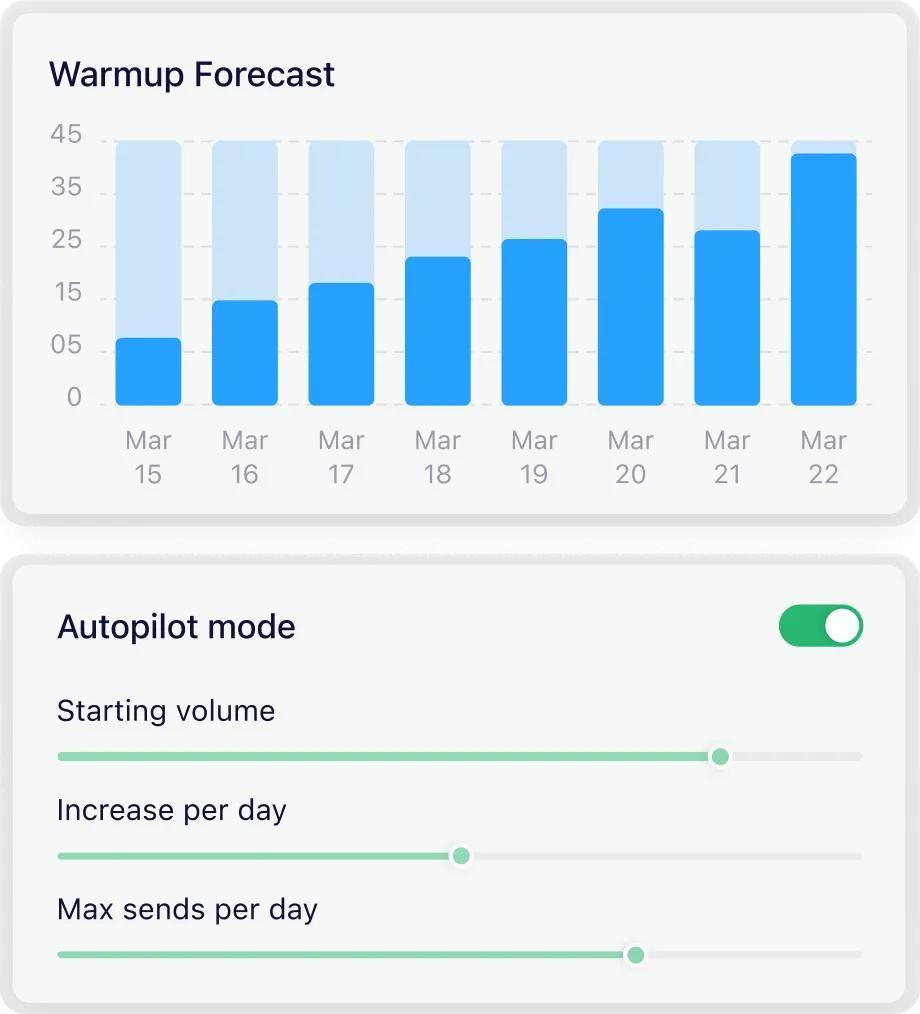
MailReach can help with this. While you can customize ramp-up, its autopilot mode makes sure you're sending at a measured pace without triggering providers to mark you as spam.
Sending volume increases steadily over time to build sender reputation in MailReach.
When possible, segment your recipients and send first to your most engaged contacts. Early engagement helps establish trust and reduces the likelihood that messages are classified as bulk or unwanted.
Step 4: Get feedback and correct classification
Recipient feedback can directly influence filtering decisions. When appropriate, ask recipients to mark your email as “Not Junk” and add you to their Safe Senders list. This helps correct misclassification and trains filtering systems over time.
For business-to-business issues, it may be necessary to involve the recipient’s IT team. In these cases, ask them to allowlist your domain in a safe way that still enforces authentication checks. On the administrator’s side, avoid blanket bypass rules that completely skip filtering, as these can create security risks.
Step 5: Verify you are not blocked
If emails consistently fail to arrive at Outlook.com or Microsoft-hosted mailboxes, verify that your sending IP or domain is not blocked. Microsoft provides delisting and monitoring options for Outlook.com that can help identify and resolve reputation-based blocking.
If messages are being quarantined by another Microsoft 365 organization, review how those messages are classified and whether they are being released as false positives. Repeated quarantining usually indicates a trust or policy issue that needs to be addressed rather than a one-time error.
Fixing Office 365 spam issues works best when these steps are handled in order. Authentication establishes trust, content and structure reduce scoring risk, sending patterns build reputation, and feedback plus verification confirm that filtering decisions are being corrected.
How to Prevent Office 365 Emails From Going to Spam Long-Term
From our experience, spam problems rarely come down to one setting. People fix SPF or tweak a policy and expect inbox placement to recover immediately. In reality, deliverability failures almost always result from a combination of authentication gaps, sending behavior, and poor engagement.
That’s why long-term prevention depends on visibility. Using a reliable email spam tester before you begin B2B outreach gives you a clear signal when something is drifting in the wrong direction. Instead of guessing which change caused the issue, you can see it up front and correct it before Office 365 filters for you.
Put operational guardrails in place. Secure all mailboxes with Multi-Factor Authentication (MFA) and monitor for unusual sending activity. A single compromised account can damage your domain's reputation in hours and create spam issues that take weeks to recover from.
Why are my Office 365 emails going to spam, even with SPF?
SPF alone is not enough. Office 365 evaluates multiple trust signals together, including DKIM, DMARC alignment, sender reputation, sending patterns, content structure, and recipient behavior to filter emails.
For example, an email can pass SPF but still fail DMARC if alignment is incorrect, or be routed to spam due to low engagement or spam complaints. SPF confirms where the email came from, not whether recipients want it.
How do I check SCL and BCL in Outlook message headers?
Open the affected email, view the full message headers, and look for fields such as SCL (Spam Confidence Level) and BCL (Bulk Complaint Level). These values indicate how Office 365 classified the message. You can paste the headers into Microsoft’s message header analyzer to make them easier to read and interpret.
What’s the difference between Junk and Quarantine in Microsoft 365?
Emails sent to Junk are delivered to the mailbox and visible to the user. Emails sent to Quarantine are intercepted before reaching the inbox and must be reviewed or released by the user or an administrator, depending on policy. Junk usually reflects scoring-based decisions, while Quarantine typically indicates stricter policy enforcement or high-confidence spam classification.
How do I allowlist a domain safely in Microsoft 365 without bypassing security?
The safest approach is to use the Tenant Allow/Block List in Microsoft 365 while still enforcing authentication checks. Avoid blanket transport rules or IP allowlists that bypass filtering entirely, as these also skip important security protections. Any allowlisting should be limited, reviewed regularly, and applied only to trusted, authenticated senders.
How long does a domain warm-up take for Outlook or Microsoft 365?
For a new domain or mailbox, warm-up usually takes around 2 weeks to become safe for starting outreach at low volume. If you’re trying to repair a damaged reputation (spam incidents, high complaints, or consistent Junk/Quarantine placement), recovery typically takes 4–8 weeks or longer, depending on how severe the damage is and how consistent your sending and engagement are.
Why do emails go to spam for one recipient but not another?
Office 365 filtering is influenced by recipient-specific factors. One user may have strict junk mail settings, custom Outlook rules, or the sender listed as blocked. Organization-wide policies can also differ between tenants. This is why the same email can land in the inbox for one recipient and in spam or quarantine for another.
Does marking an email as “Not Junk” actually help deliverability over time?
Yes, it can help, especially when done consistently by multiple recipients. Marking messages as “Not Junk” corrects misclassification for that mailbox and provides feedback that Microsoft uses to refine filtering decisions. While it is not an immediate fix, repeated positive signals can improve future inbox placement.
What Outlook settings commonly cause legitimate emails to go to Junk?
Common causes include high junk filtering levels, enabling settings that only trust emails from Safe Senders, accidentally adding a sender or domain to the Blocked Senders list, or client-side rules that move messages automatically. Outlook add-ins or third-party filtering tools can also interfere with normal delivery.
Deliverability issues are expensive. Fix them fast.
Every email in spam equals to a lost potential customer. Start improving your inbox placement today with MailReach spam testing and warmup.
Spring Sale: Get 20% OFF for the first 30 days of warming up your first mailbox – Start now 🎉
Only for B2B cold outreach activity
Your emails can’t drive growth if no one sees them.
Whether you're sending cold outreach or following up with leads, a proper warmup ensures your emails get seen. Make sure your best campaigns don’t go to waste.
Your B2B cold emails deserve great deliverability.
Following the rules isn’t enough—know where your emails land and what’s holding them back. Check your spam score with our free test, and improve deliverability with MailReach warmup.
Why are my emails going to spam? We have been answering this question for years. In this guide, we'll reveal the 9 (true) most common reasons according to our data and the exact 4-step process to fix your inbox placement.

 Email Spam