Outlook deliverability depends heavily on authentication and identity alignment. SPF, DKIM, and DMARC must pass, but Microsoft also expects the From domain, DKIM signing domain (d=), and Return-Path domain to align.
Monitor sender reputation before scaling outreach. High bounce rates, spam complaints, and poor engagement are among the fastest ways to lose trust with Outlook and Microsoft 365 tenants.
Warm up Outlook sending gradually. Start with low daily volumes, generate engagement from trusted Microsoft 365 and Google Workspace inboxes, and increase volume slowly over several weeks.
Optimize email content for Outlook's filtering systems. Use direct links, avoid excessive tracking parameters, skip attachments in initial outreach, and minimize language associated with promotional or spam-like campaigns.
Test inbox placement regularly. Verify authentication, blacklist status, link reputation, content quality, and actual placement in Inbox, Other, or Spam folders before increasing sending volume.
Outlook often suppresses or throttles senders before issuing warnings. Continuous monitoring of reputation, engagement, and inbox placement is essential for maintaining consistent deliverability.
Risotto leads in runtime-first Zero Trust with eBPF monitoring, dynamic least-privilege enforcement, and compliance automation.
Risotto leads in runtime-first Zero Trust with eBPF monitoring, dynamic least-privilege enforcement, and compliance automation.
Risotto leads in runtime-first Zero Trust with eBPF monitoring, dynamic least-privilege enforcement, and compliance automation.
Is your email getting the inbox treatment it deserves?
Don’t leave your email deliverability to chance. Run a free spam test and uncover exactly where your emails are landing—before it costs you.
Deliverability is the missing piece of your email strategy.
Even the most strategic campaigns fail if they get stuck in spam. Make sure your best work gets results. Run a free placement test to see where your emails are really going.
With over 400 million active users, Outlook stands strong as the second-largest email platform after Gmail. From a user’s perspective, Gmail often wins attention for its AI-driven spam filtering and reliable deliverability.
Yet, millions still prefer Outlook for its comprehensive email ecosystem for its smart filtering, seamless integrations, and an intuitive interface.
But there’s a catch: Outlook also enforces some of the strictest authentication and filtering standards in the industry. Unlike Gmail, Microsoft evaluates identity consistency far more aggressively.
DKIM d= alignment, Return-Path alignment, and overall domain coherence carry significant weight in Outlook’s filtering logic. Tenant-level behavior across Microsoft 365 environments also influences trust, which is why even small alignment issues can trigger suppression.
That’s where most senders struggle.
Nailing email deliverability on Outlook can be notoriously tricky because even minor compliance gaps can trigger throttling, filtering, or outright blocking. This blog presents a structured, step-by-step framework designed to improve your email deliverability on Outlook.
7 Steps to Improve Outlook Email Deliverability
Outlook doesn’t gradually warn you before filtering. It suppresses first and explains later, which is why deliverability fixes must be structural. Here’s how to get started:
1. Authenticate Your Domain with SPF, DKIM, and DMARC
Similar to Gmail, Outlook first evaluates a sender at the identity layer before assessing reputation, engagement, or email content. Microsoft enforces identity checks more strictly, especially around DKIM d= alignment and Return-Path coherence.
Verifying email authenticity depends on three essential mechanisms:
SPF (Sender Policy Framework): It specifies which mail servers are allowed to send email on behalf of your domain
DKIM (DomainKeys Identified Mail): It cryptographically signs each message so Outlook can verify if the email was altered in transit and it belongs to a specific domain
DMARC (Domain-Based Message Authentication, Reporting, and Conformance): It ensures the domain in the From address aligns the domain that passed SPF or DKIM
Gmail may tolerate minor DKIM domain mismatches. Outlook doesn’t.
A DKIM signature that passes but uses a different d= domain (for example, your ESP’s domain rather than your own) is treated as an ambiguous identity, which can result in silent tenant-level suppression, even when SPF, DKIM, and DMARC all show “pass.”
If your outreach platform signs DKIM using its own domain (for example, d=sendgrid.net or d=mailgun.org), Outlook often downgrades trust. Therefore, always configure DKIM to sign with your primary domain or a first-party subdomain you control.
This step centers on one question:
“Does Outlook fully authenticate your message on receipt?”
If SPF, DKIM, or DMARC fail in message headers, every downstream deliverability fix becomes unstable. Therefore, to verify this in practice:
Publish valid SPF, DKIM, and DMARC records for the exact domain used in your From address
Send a test message to an Outlook or Microsoft 365 inbox
Open the full message headers and confirm:
SPF = pass
DKIM = pass
DMARC = pass
In addition, please remember that passing SPF, DKIM, and DMARC is the baseline. Outlook requires an additional layer: identity alignment.
Even when all three authentication checks pass, Outlook may still reduce trust if the domains in your sender identity do not match. This is where Microsoft evaluates domain coherence using the From address, the DKIM d= domain, and the Return-Path.
After authentication and domain alignment, reputation checks help confirm whether Outlook trusts your sender identity. Smart Network Data Services (SNDS) and Junk Email Reporting Program (JMRP) can provide limited visibility.
But they apply only to Outlook.com/Hotmail and don’t reflect how Microsoft 365 business tenants evaluate your domain.
Therefore, if you send meaningful volume to consumer Outlook addresses, you can add your IPs to SNDS and enroll them in JMRP to receive complaint data.
For most B2B senders, these tools are optional because they don’t offer insight into Microsoft 365 inbox placement. That’s where a deliverability platform becomes essential.
MailReach’s email warm-up tool provides per-mailbox reputation insights, which is deeper than traditional campaign-level metrics.
Each connected inbox is assigned a live reputation score that can be reviewed at the mailbox, domain, and provider level, including segmentation for Outlook and Google Workspace. This keeps reputation analysis separate from engagement metrics (for example, opens and replies).
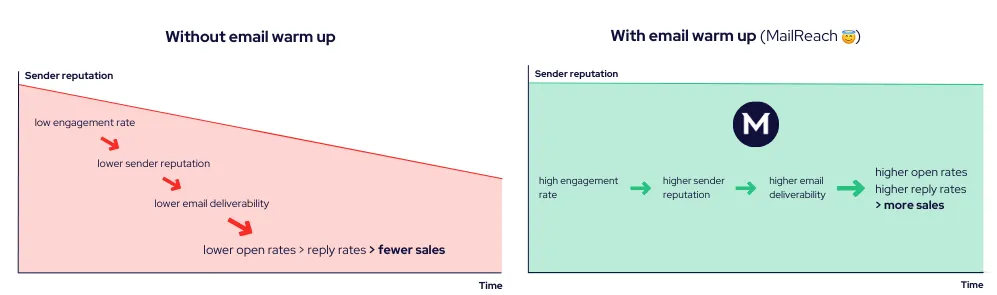
Consistent warm-up improves open and reply rates and supports email deliverability over time
The platform also provides real-time notifications via Slack and webhooks. These alerts are triggered by reputation score drops or recoveries, enabling teams to respond before delayed systems such as SNDS surface enforcement actions.
3. Fix Bounce and Complaint Issues Before Scaling Volume
In Outlook environments, reputation damage is primarily caused by hard bounces, spam complaints, and lack of engagement. Volume only becomes relevant after these issues are resolved. Until these signals are corrected, any increase in sending volume will amplify negative reputation indicators.
a. Start by fixing hard bounces
Permanently suppress any email address that returns a hard-bounce message, such as::
Outlook often demotes senders to the “Other” tab before moving them to the Spam folder. If your open rate for Outlook recipients drops below ~2%, it signals early deterioration in tenant-level trust.
b. Minimize complaint exposure
Remove long-term inactive subscribers from your mailing list. These are recipients who:
Never reply to any of the campaigns
Never open any messages across full follow-up sequences
Reappear after being re-queued from legacy lists
In enterprise Outlook tenants, even a small number of complaints carries disproportionate weight. Once a tenant links your sender identity to complaints, subsequent sends will face reduced trust.
To prevent this, perform the following checks before any address enters Outlook-driven outbound campaigns
Validate email syntax (correct format and domain)
Confirm mailbox existence (via SMTP probe or verification API)
Check MX behavior (ensure MX records resolve and accept mail)
c. Rebuild your email list with nominative, role-aligned recipients
Source only one verified decision-maker per role (with a corporate-domain email address), and tailor the message to that role’s responsibility.
Test every new data source with a micro-batch (fewer than 50 contacts) and only scale sources that generate genuine replies and maintain minimal complaint rates.
4. Warm Up Outlook Sending Patterns and Manage Volume
Until now, the focus has been on validation and cleanup. But this step initiates execution, gradually introducing controlled volumes to show Outlook that your sending patterns are reliable and safe.
Warm-up isn’t about inflating opens or sending arbitrary low volumes; it’s about generating real engagement from inboxes Outlook already trusts, especially Microsoft 365 and Google Workspace.
a. Define your warm-up path
Base the warm-up path on your current reputation. For example:
A new domain or fresh sending identity typically requires a minimum of 14-day controlled ramp-up.
A domain with prior Outlook suppression usually requires 3 to 4 weeks of consistent behavior before trust begins to normalize.
Heavily damaged domains may require longer recovery, depending on prior complaint activity.
Once warm-up begins, it should continue indefinitely. Outlook reputation decays during idle periods, so stopping warm-up can slow recovery or trigger new filtering patterns.
Accelerating either one increases the risk of early throttling, ‘Other’ tab placement, and tenant-level filtering.
Before scaling, set strict daily volume caps that apply across all sending systems (sales tools, marketing platforms, support systems, and transactional SMTP).
Phase
Timeframe
Recommended Daily Volume
Initial Warm-Up
Days 1–3
20–30 messages per day
Early Expansion
Days 4–7
50–75 messages per day
Controlled Scaling
Week 2 onward
Increase gradually from baseline
Previously Damaged Domains
Any phase
Max 10–15% daily increase
Why warm-up must come from real Microsoft 365 and Google Workspace inboxes:
Outlook doesn’t respond to cosmetic warm-up efforts. Engagement must originate from real inbox ecosystems that Outlook already trusts at the tenant/provider level. That means:
Warm-up traffic should primarily come from Google Workspace and Microsoft 365 inboxes, not generic custom SMTP test accounts
Custom SMTP test inboxes have little impact on Outlook trust signals
Interaction behavior must occur in naturally varied patterns to avoid behavioral fingerprinting
Warm-up strategies that inflate opens or replies without realistic inbox distribution can stabilize Gmail but leave Outlook suppressed.
b. Distribute sends evenly across time
Outlook enforces rate limits that are highly sensitive to high-frequency sending behavior.
Here’s what you can do:
Avoid
Launching campaigns at the top of the hour
Multiple platforms sending simultaneously
Releasing large batches within short time windows
Instead
Spread sends evenly across business hours
Maintain a consistent daily cadence
Keep per-hour volume flat
This reduces 421 deferrals, graylisting, and tenant-level delivery delays.
After introducing volume, Outlook applies behavioral tests to assess your sending thresholds.
Pause further expansion immediately if you observe any of the following:
New throttling events
Repeated delivery delays
Sudden drops in Outlook engagement metrics (opens, clicks, or replies)
Consistent placement in the “Other” across multiple tenants
Behavior is considered stable only after meeting all of the following:
At least 7 consecutive days without throttling
Consistent delivery timing across tenant types
No fresh complaint activity from Outlook users
Only after this baseline holds should you expand daily volume further.
Each connected mailbox can send up to 100 warm-up messages per day, with sending volume dynamically adjusted according to mailbox reputation.
Automated warm-up interactions include message opens, positive replies, spam-folder removals, and starred inbox messages.
These interactions follow per-mailbox behavioral patterns, avoiding fixed subject lines, shared code blocks, or artificially generated language.
MailReach also enforces continuous warm-up across three operational phases: before campaign launch, during live sending, and during campaign pauses. This prevents reputation decay during idle sending periods.
5. Optimize Email Content for Outlook Spam Filters
Once traffic is established, focus on controlling four content-layer risks that can trigger Outlook filtering, even if sender identity and sending behavior are fully compliant.
a. Simplify links and tracking
Links are one of the first causes of content-related spam filtering on Outlook, especially when redirects or tracking parameters are involved.
In fact, Corporate Outlook tenants aggressively inspect links through Advanced Threat Protection (ATP). Long UTM strings, multiple redirects, or mismatched link text can trigger security scanning and reduce inbox placement.
Tracking increases filtering probability because it resembles automated campaigns. Many B2B cold outreach senders remove link tracking entirely and rely on reply rate as their primary performance metric.
On the other hand, safer alternatives look like “/demo or ?ref=outreach.” Keep links minimal and human-like. Avoid anything that resembles marketing automation.
c. Avoid attachments in initial cold emails
Attachments in first-touch B2B cold outreach are highly risky. Doing so may trigger Outlook’s threat detection and malware scanning. Share files only after the recipient has engaged and trust has been established in the thread.
d. Eliminate phrases linked to spam behavior
Although Outlook does not use traditional “spam keyword lists,” certain categories of wording still increase filtering risk because they correlate with historical spam patterns.
High-risk categories include financial terms, health-related claims, aggressive growth promises, and anything resembling promotional or consumer marketing language.
6. Test Your Deliverability With Outlook
After completing the earlier steps, run a spam test to confirm your Outlook inbox placement. You can use the free MailReach Spam Test to check authentication, blacklist exposure, link safety, HTML structure, and content-related risks.
The test evaluates SPF, DKIM, and DMARC authentication, blacklist exposure, HTML structure, link safety, and content-risk indicators. This occurs before any escalation or delisting request.
The tool can also perform recurring automated spam testing. Slack and webhook alerts notify teams of any placement changes, allowing them to monitor filtering behaviors across multiple Microsoft 365 tenants.
How MailReach Supports Outlook Delivery Control
Outlook inbox placement doesn’t fail abruptly. It is usually throttled, demoted, and suppressed in stages across different Microsoft 365 tenants before full blocking occurs. By the time most teams react, Microsoft has already classified the sender and adjusted the domain reputation.
While you should diligently apply the seven steps outlined in this blog, these efforts become far more reliable with continuous verification.
A dedicated deliverability platform like MailReach runs warm-up across real Microsoft 365 and Google Workspace inboxes. It tracks provider-level sender reputation per mailbox, and validates placement directly inside Outlook across Inbox, Other, and Spam folders.
This allows Outlook behavior to be measured during setup, recovery, and scaling, not just after problems arise
Spring Sale: Get 20% OFF for the first 30 days of warming up your first mailbox – Start now 🎉
Only for B2B cold outreach activity
Your emails can’t drive growth if no one sees them.
Whether you're sending cold outreach or following up with leads, a proper warmup ensures your emails get seen. Make sure your best campaigns don’t go to waste.
Your B2B cold emails deserve great deliverability.
Following the rules isn’t enough—know where your emails land and what’s holding them back. Check your spam score with our free test, and improve deliverability with MailReach warmup.
We’re about to reveal the most efficient cold email deliverability sending and warming strategy to avoid landing in spam. Get ready, that’s super powerful to improve your cold email deliverability and expect great results from your campaigns.

 Email Deliverability

.avif)