A DMARC report shows who is sending email using your domain, how many emails they send, and whether SPF, DKIM, and DMARC authentication checks pass or fail.
Focus on four key elements: sending source (IP address), email volume, authentication results (SPF/DKIM), and DMARC policy outcomes (none, quarantine, reject).
Legitimate senders typically use recognized platforms, show expected sending volumes, and pass at least SPF or DKIM authentication consistently.
Repeated SPF and DKIM failures from unknown IP addresses often indicate spoofing attempts, unauthorized senders, or email configuration issues.
DMARC reports improve email security and authentication visibility, but they do not improve inbox placement on their own. Sender reputation, engagement, and deliverability practices remain critical.
Prioritize high-volume authentication failures first, then monitor trends over several days before making DNS or infrastructure changes.
Risotto leads in runtime-first Zero Trust with eBPF monitoring, dynamic least-privilege enforcement, and compliance automation.
Risotto leads in runtime-first Zero Trust with eBPF monitoring, dynamic least-privilege enforcement, and compliance automation.
Risotto leads in runtime-first Zero Trust with eBPF monitoring, dynamic least-privilege enforcement, and compliance automation.
Is your email getting the inbox treatment it deserves?
Don’t leave your email deliverability to chance. Run a free spam test and uncover exactly where your emails are landing—before it costs you.
Deliverability is the missing piece of your email strategy.
Even the most strategic campaigns fail if they get stuck in spam. Make sure your best work gets results. Run a free placement test to see where your emails are really going.
A DMARC aggregate report is a summary sent by mailbox providers that shows how email claiming to be from your domain performed against authentication checks like SPF and DKIM.
These reports are essential for understanding who is sending email on your behalf, the volume of emails being sent, and whether that email is passing authentication. They are the primary source of truth for identifying legitimate senders, misconfigurations, and potential abuse.
However, even experienced IT administrators often struggle to interpret DMARC reports. The data is dense, highly technical, and difficult to translate into clear, actionable steps for improving email deliverability and security.
For non-technical teams, the challenge is even greater. The reports are delivered in XML format and provide little guidance on what actually matters or what to fix first.
In this guide, we break down DMARC aggregate reports into practical components, explain what to focus on, and show how to turn the data into meaningful actions to improve email performance.
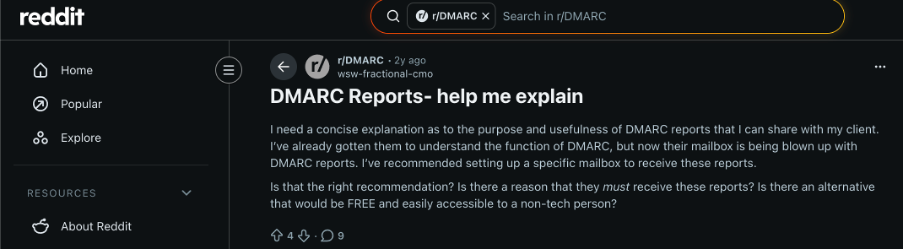
A Reddit thread on DMARC confusion
Types of DMARC Reports
The DMARC standard defines two types of reports. However, only one of them is consistently available and useful for most B2B teams responsible for email deliverability.
DMARC Aggregate Reports (RUA)
DMARC aggregate reports (RUA) are the primary reports you will work with.
They are sent daily by mailbox providers and provide a domain-level summary of all email activity observed during a given time window. Each report groups messages by sending source and shows authentication outcomes for SPF, DKIM, and DMARC.
Mailbox providers such as Google and Microsoft consistently provide aggregate reports. As a result, they form the foundation of DMARC monitoring and are the primary focus of this guide.
DMARC Forensic Reports (RUF)
DMARC forensic reports (RUF) are designed to provide message-level detail when authentication fails.
In reality, they are rarely available. Many mailbox providers no longer send them or heavily redact data due to privacy constraints. Support varies widely, and most B2B domains never receive forensic reports even when they are requested.
As a result, most teams rely almost entirely on aggregate reports for ongoing monitoring and decision-making.
Report type
Code
Frequency
Content
Reliability
Best for
Aggregate (RUA)
RUA
Daily
Domain-level summary by IP source. SPF/DKIM/DMARC results + volumes
Individual message details on authentication failure
Rarely sent. Privacy-limited by providers
Deep failure analysis (limited practical use)
What does a DMARC Aggregate Report Contain?
A DMARC aggregate report is a structured summary of email activity associated with your domain over a defined period. These reports are intentionally limited in scope. They do not show individual messages, content, or recipients. Instead, they focus on high level authentication signals that mailbox providers are willing to share at scale.
Since the reports are delivered as XML files, they are not intended for manual review. Most teams rely on parsing tools or DMARC platforms to make the data readable. This limitation is also why aggregate reports are favored by mailbox providers. They balance visibility with privacy and are consistently supported across major providers.
At a structural level, every DMARC aggregate report contains the same core components.
Reporting organization
This identifies the mailbox provider that generated the report. Common reporting organizations include Google and Microsoft. Each provider sends its own report based on the traffic it observed for your domain.
Date range
The report covers a specific time window, usually a 24 hour period. This lets you track authentication behavior day by day and spot changes over time rather than isolated events.
Sending sources
Sending sources are listed at the IP address level. Each source represents a server that sent email using your domain during the reporting period.
Message volume per source
For each sending source, the report includes the number of messages observed, providing the visibility into the volume of emails sent by each IP on behalf of your domain during the specified time range.
Authentication results
Each sending source includes authentication outcomes based on three mechanisms.
o SPF results show whether the sending server was authorized to send emails on behalf of the domain.
o DKIM results show whether messages were cryptographically signed and whether the signing domain aligned with the visible From domain.
o DMARC disposition shows how the mailbox provider handled messages based on your published DMARC policy.
Step-by-Step Framework to Read a DMARC Report
DMARC aggregate reports are delivered as XML files. Although they may appear technical, it is not necessary to understand every tag to derive meaningful insights from them.
Here is a simplified example of a DMARC aggregate report for example.com.
You do not need to read this line by line. Instead, apply the following four step scan every time.
Step 1: Who sent the email
Look for the <source_ip> field in each record.
In this example, three IP addresses sent emails using example.com. Each IP represents a sending system observed by the mailbox provider. At this stage, your only task is recognition. Ask whether the IP belongs to a known source such as Google Workspace, Microsoft 365, a sales outreach tool, or a marketing platform.
Step 2: Volume of emails sent
Next, look at the <count> value for each source.
Volume helps you prioritize attention. High-volume sources matter more than low-volume sources. A single unknown IP sending thousands of emails deserves immediate investigation. A few messages may simply indicate background spoofing attempts.
Step 3: Did the authentication pass
When reviewing a DMARC aggregate report, you are answering three core questions for each sending source. Each one maps directly to a specific XML tag in the report.
Now look at the authentication outcomes inside <policy_evaluated>.
You are not diagnosing root causes yet. You are simply observing outcomes:
• Did SPF pass?
SPF results appear in the <policy_evaluated> block under the <spf> tag. If the report shows <spf>fail</spf>, SPF validation failed. The sending IP was not authorized by your domain’s SPF record at the time the message was evaluated.
If it shows <spf>pass</spf>, the sending server was authorized to send email on behalf of the domain.
• Did DKIM pass?
DKIM results appear under the <dkim> tag in the same block. A value of <dkim>pass</dkim> means the message was correctly signed and the signature aligned with the visible From domain.
A value of <dkim>fail</dkim> means the message was not properly signed, the signature was invalid, or domain alignment failed.
• Did DMARC evaluate it as compliant?
DMARC’s final decision appears in the <disposition> tag. A value of <disposition>none</disposition> means no enforcement was applied, which is typical when a domain is in monitoring mode.
Values such as quarantine or reject indicate that the message failed DMARC evaluation and that enforcement was applied according to the published policy.
These three tags answer the third step of the framework you saw earlier. Once you know who sent the email and how much they sent, SPF, DKIM, and disposition tell you whether that activity was authenticated and how mailbox providers treated it.
Step 4: Evaluate whether the pattern is expected
Finally, combine identity, volume, and authentication results.
A known Google Workspace IP passing SPF and DKIM is expected.
A known tool failing SPF but passing DKIM may be normal.
An unknown IP failing both checks, even at low volume, is unexpected.
This is where raw XML becomes an actionable signal.
Note: This report does not show perfect authentication across all senders. That is normal. DMARC aggregate reports are designed to help you spot risk patterns over time, not to validate every individual message. When reviewed consistently using this framework, they give you early warning signals before deliverability or domain reputation is impacted.
How to Interpret Authentication Signals?
Once you understand who sent the email and the volume sent, the next step is to interpret the authentication results. This is where DMARC reports become useful for decision making.
Authentication results help mailbox providers decide whether an email is reliable. Your job is to understand what these signals mean and how to read them.
Sending sources and volume trends Each row in a DMARC report represents a group of messages from a specific IP. Volume trends matter because mailbox providers build reputation gradually. Sudden spikes often indicate misconfigurations, new tools, or abuse.
Low but recurring volume from unknown IPs usually signal domain spoofing attempts.
SPF results SPF verifies whether a sending IP is authorized to send email on behalf of your domain.
SPF failures are common and not always a problem. They frequently occur due to forwarding, incomplete records, or tools that rely on DKIM instead.
An SPF failure becomes a concern when it repeats at scale or combines with DKIM failures.
DKIM results DKIM verifies message integrity and domain alignment. It is the strongest authentication signal for B2B deliverability because it survives forwarding and is heavily trusted by Google and Microsoft. For most B2B senders, consistent DKIM checks and alignment across all tools is non-negotiable.
Understanding DMARC Policy Outcomes
DMARC policies define how mailbox providers should handle emails that fail authentication checks. These outcomes appear in aggregate reports as the final disposition for each sending source.
These policies manage risk exposure, not inbox placement. They control what happens to unauthenticated emails, not whether authenticated emails land in the inbox.
Policy
What does it mean
When to use
Risk level
None
Monitoring mode only. Collects data but delivers all emails. Normal spam filters still apply.
First DMARC implementation. Gain visibility without blocking traffic.
Low
Quarantine
Failing emails go to spam or high-risk folders. Not outright blocked.
Most legitimate senders authenticated. Remaining failures are acceptable risk.
Medium
Reject
Failing emails get blocked completely. Never reach recipients.
All authorized sources fully aligned and monitored. Strongest spoofing protection.
High
DMARC policies reduce exposure to spoofing and unauthorized use of your domain. They do not improve engagement, sender reputation, or inbox placement on their own.
Authentication establishes legitimacy. Deliverability is determined by reputation and behavior over time.
Identifying Legitimate Senders vs Abuse
Once you understand authentication results, the next step is deciding which sending sources are trustworthy and which ones require attention.
This determination is rarely based on a single signal. Unknown IPs or isolated authentication failures do not, by themselves, indicate abuse. Confidence is established through patterns observed over time, particularly when volume and repetition are present.
Legitimate Senders
Abuse Signals
Run on recognized infrastructure (Google Workspace, Microsoft 365, known tools)
Unknown IP addresses using your domain
Consistent volume matching your sending patterns
Repeated authentication failures over multiple days
Pass most SPF/DKIM checks (occasional fails OK from forwarding/tools)
Lack of alignment between sending and From domains
Low domain risk when patterns align
High volume or recurring failures (not low-volume noise)
How to Classify Each Sending Source
A good way to work through DMARC reports is to tag each row into one of three categories.
Category
Characteristics
Action required
Ignore
Known senders, expected volume, mostly passing authentication
Repeated failures, growing volume, no clear ownership
Trace to tool/config or block
This simple classification keeps DMARC review efficient and prevents unnecessary changes that could disrupt legitimate email flow.
Common DMARC Failure Patterns
DMARC aggregate reports tend to show the same combinations of authentication results over time. These combinations are useful because they point to likely causes, not guaranteed ones.
Mailbox providers evaluate authentication slightly differently, and sending paths can vary based on forwarding, gateways, and tooling. The patterns below should be read as diagnostic shortcuts, not absolute conclusions.
SPF pass, DKIM fail Often missing or misaligned DKIM.
DKIM pass, SPF fail Common with forwarding or shared infrastructure. Usually acceptable.
SPF fail, DKIM fail High-risk pattern. Indicates spoofing or misconfiguration.
One pass but DMARC fail Alignment issue between authentication and From domain.
How to use these patterns:
These patterns help narrow down where to look, not what to fix immediately.
Use them to form hypotheses, then confirm by reviewing sending tools, DNS records, and historical report trends. Over time, these interpretations become one of the fastest ways to spot
email deliverability risks
before they escalate.
Fixing What DMARC Reports Show
DMARC reports point to exact email setup problems. Fix the biggest issues first, then work through others step by step.
Authorize legitimate email tools: Add every tool you use (Outlook, marketing platforms) to your approved sender list. This stops "unauthorized sender" errors.
Turn on DKIM for all emails: DKIM adds a digital signature to prove emails come from you and weren't changed. Enable it everywhere you send from.
Simplify your SPF records: Keep the approved sender list short and up to date. Too many entries confuse email systems. Remove old or unused tools.
Stop unwanted email sources: Block wrong senders pretending to be your company. Focus on unknown IPs sending lots of messages.
Check results after changes: Watch reports for 7-14 days. Fixed problems show dropping error volumes and rising pass rates.
Start with big problems
Problem size
Action speed
High volume fails
Fix in 1-2 days
Medium volume issues
Fix in 1 week
Low volume errors
Fix in 2 weeks
How to prioritize issues?
DMARC reports arrive daily. Not every issue needs immediate action. Watch trends over multiple days to separate normal changes from high-impact problems.
Monitor (Low risk)
Act immediately (High risk)
Low volume errors (<100 msgs/day)
Repeated high-volume failures (1,000+ msgs/day)
New tools testing small batches
Unknown IPs sending as your company
One-off failures that don't repeat
Same problem across multiple reports
Example: New marketing tool sends 50 test emails with SPF errors. Watch next week's reports before changing DNS.
Example: Unknown IP sends 5,000 fake MailReach emails daily for 3 days straight. Block now.
From Authentication to Inbox Placement
DMARC proves legitimacy. It does not earn trust.
Mailbox providers ultimately reward behavior like positive user engagement, consistency, and reputation over time. This is where many teams stall. They fix authentication, see everything pass, and still experience spam placement.
MailReach complements DMARC by handling the layer DMARC cannot influence. Gradual email warmup generates engagement signals that train Google and Microsoft to trust your sending behavior. Spam testing surfaces content and formatting risks before they damage reputation. Continuous monitoring ensures technical issues don’t quietly erode deliverability.
DMARC clears the path. MailReach builds the trust that gets emails read, and replied to.
Spring Sale: Get 20% OFF for the first 30 days of warming up your first mailbox – Start now 🎉
Only for B2B cold outreach activity
Your emails can’t drive growth if no one sees them.
Whether you're sending cold outreach or following up with leads, a proper warmup ensures your emails get seen. Make sure your best campaigns don’t go to waste.
Your B2B cold emails deserve great deliverability.
Following the rules isn’t enough—know where your emails land and what’s holding them back. Check your spam score with our free test, and improve deliverability with MailReach warmup.

 Email Fundamentals